You can send a family member invite when you first add family as a family member or after you have added them by editing their record and adding their email. You are also able to resend a family member email invite if it was not received.
How to send a family member invite when you first add them
Log in to your account and head to Settings > Family Members.
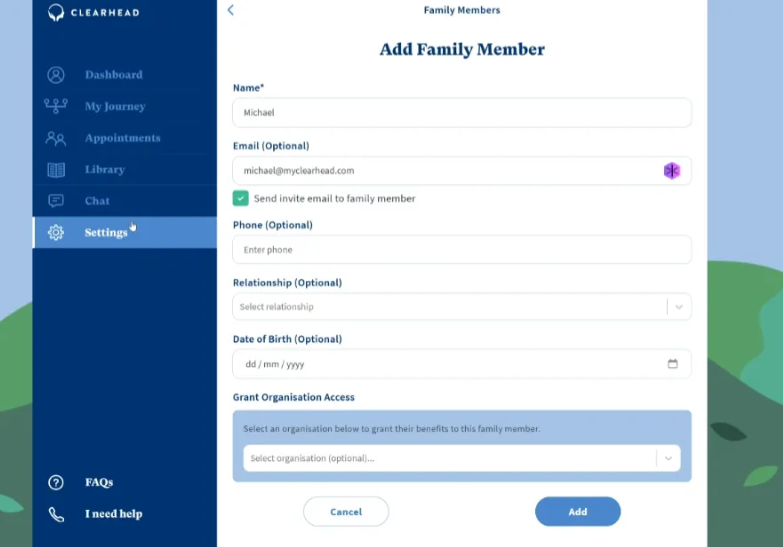
Click Add Family Member.
Enter their email (and other details including Grant Organisation Access if you wish them to be entitled to therapy) and tick 'Send invite email to family member'.
Save the record by pressing Add.
This will send the family member an email, inviting them to their own account on Clearhead.
Resending an email invite
To resend the invite if they have not received it, head to Settings > Family Members.
Find the family member and press the Resend invite button (letter icon).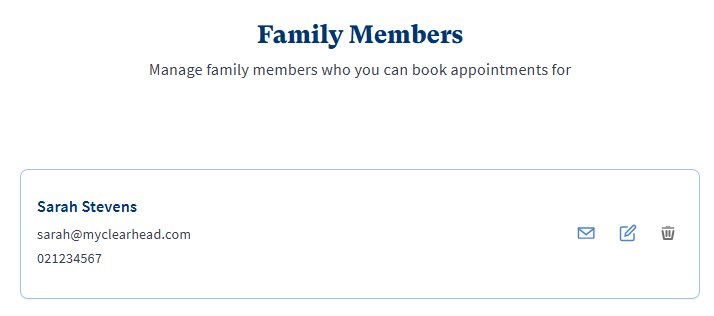
Adding an email after creating their account
If you have entered the family member but did not initially add an email, you can find and edit the family member record under Settings > Family Members.
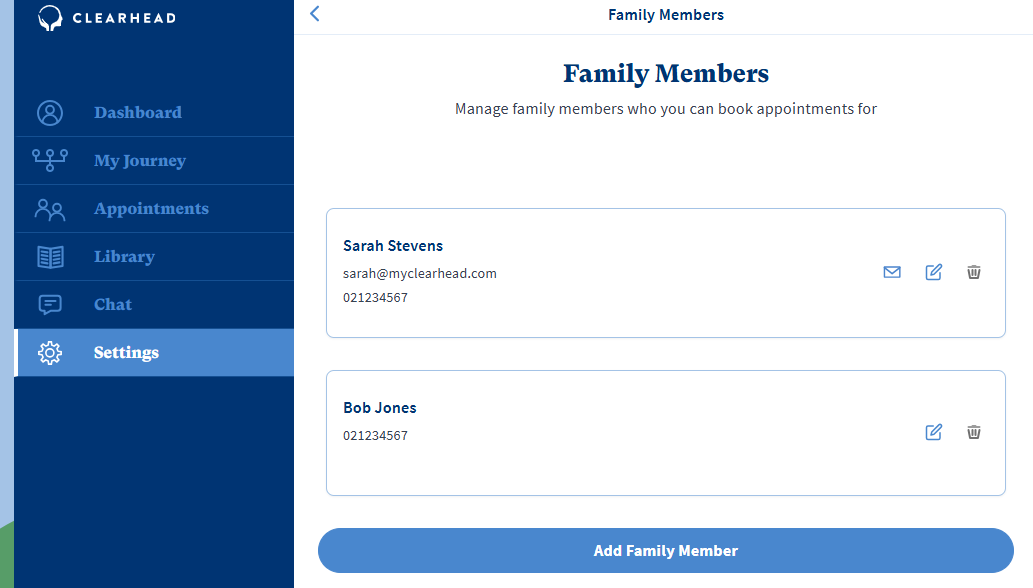
Click Edit (pencil icon).
Add their email.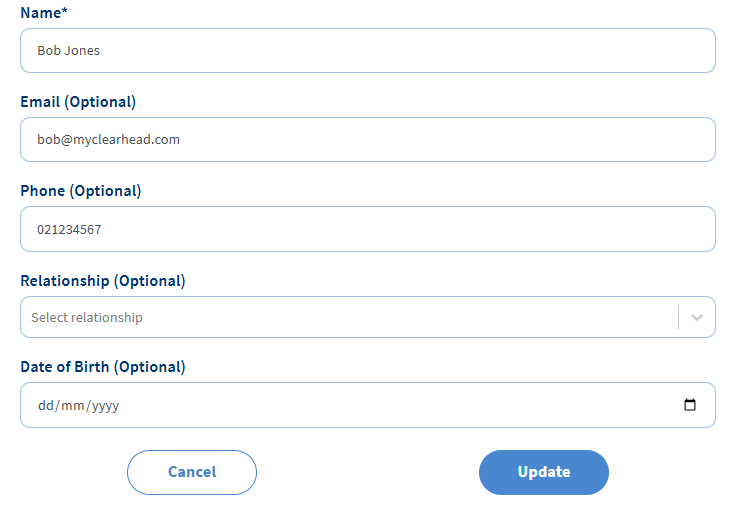 Press Update.
Find the family member under Settings > Family Members and press the letter icon which will send them an email invite. 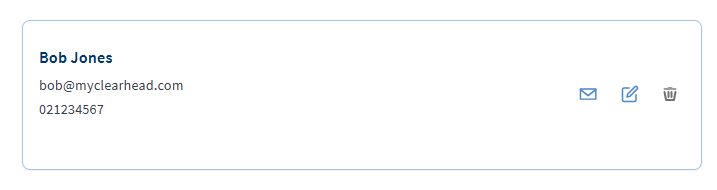
Was this article helpful?
That’s Great!
Thank you for your feedback
Sorry! We couldn't be helpful
Thank you for your feedback
Feedback sent
We appreciate your effort and will try to fix the article