When you are signed in, head to Appointments.
Click ‘Browse our network of therapists’ or ‘Get matched with a therapist’ to use our matching tool.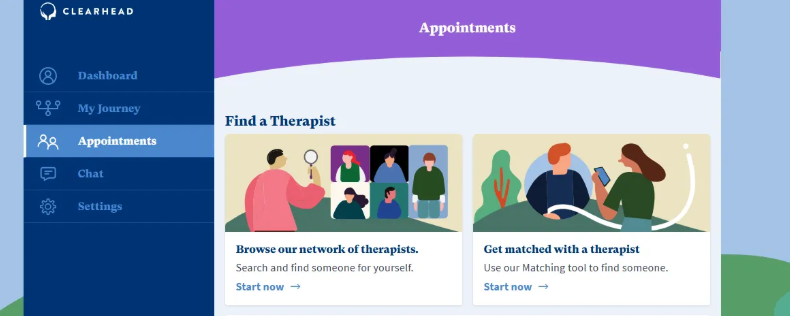
When you have found a therapist, click into their profile and click ‘Book Now’.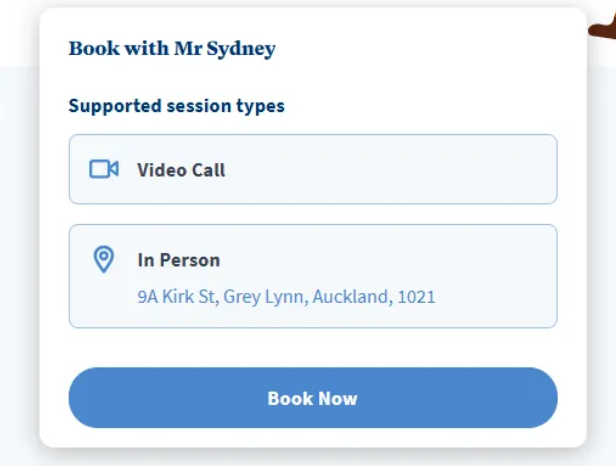
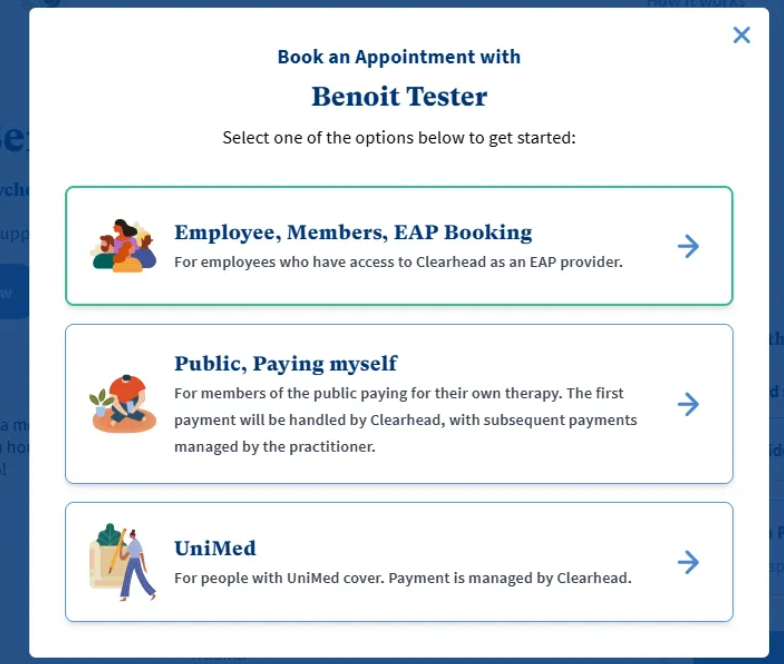
Click ‘Employee, Members, EAP Bookings’.
When asked ‘Who is this appointment for?’, click ‘Family Member’.
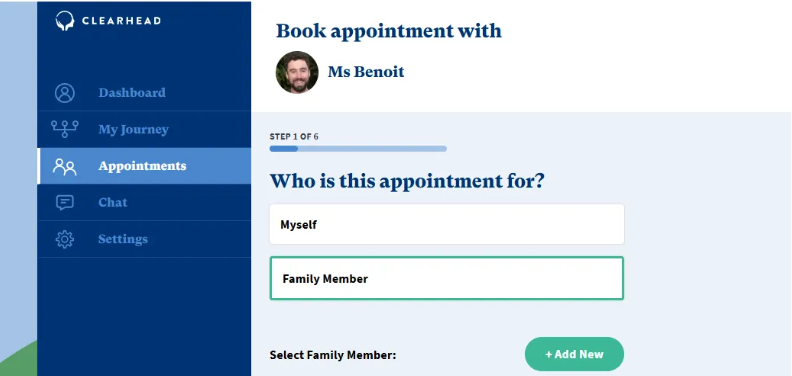
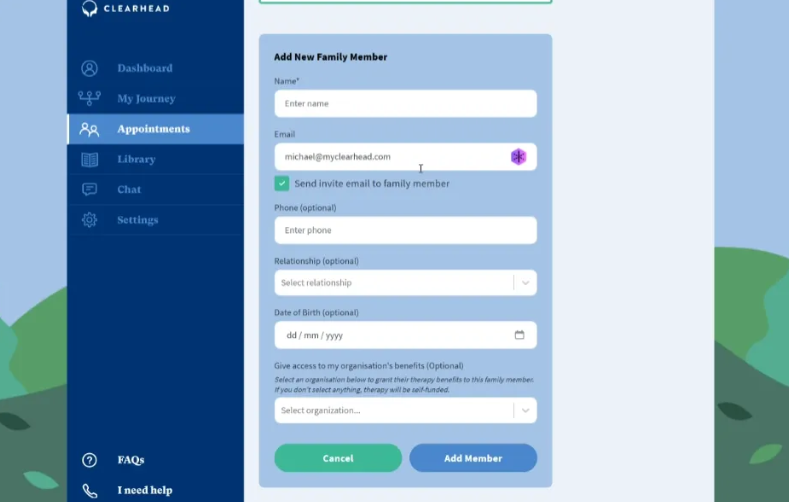
If you have not previously entered the family member’s details, click ‘Add New’ and enter the details of the family member (only name is compulsory).
If you want them to be able to create their own account and manage their own bookings, enter their email address and tick ‘Send Invite email to family member’. They will receive an email saying you’ve invited them and be prompted to accept the invite and log in or create an account.
When you reach ‘Give access to my organisation’s benefits’ please select your company in the drop down to access your company’s EAP family funding. If you don’t select anything this will default to self-funded therapy.
Click ‘Add Member’ and then ‘Next’.
You will then be asked how you would like to pay, select EAP via YOUR ORGANISATION. However please note the following funding options are also available:
Credit Card (you will be prompted to pay for the session via credit card)
Unimed Insurance (if this person has Unimed insurance, click ‘Add UniMed Insurance’, which will prompt you to enter these details and chose this as a source of funding instead, should you wish).
Once you have selected the funding method, click ‘Next’.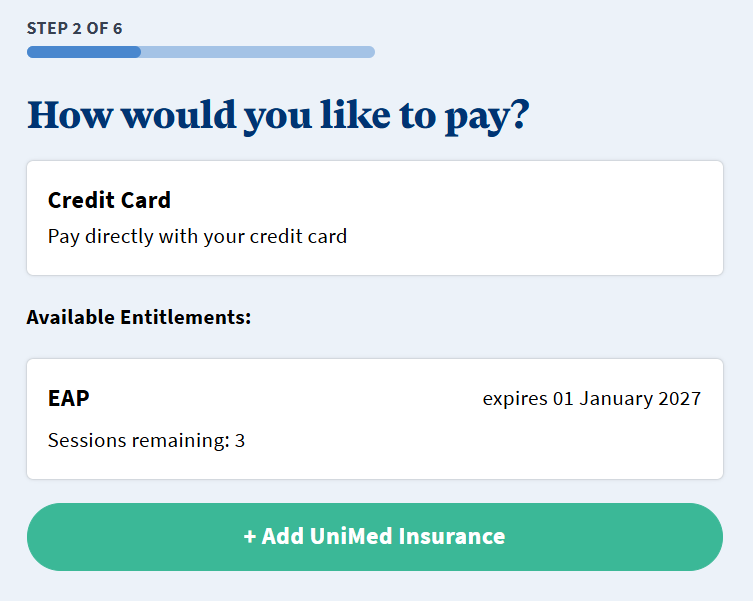
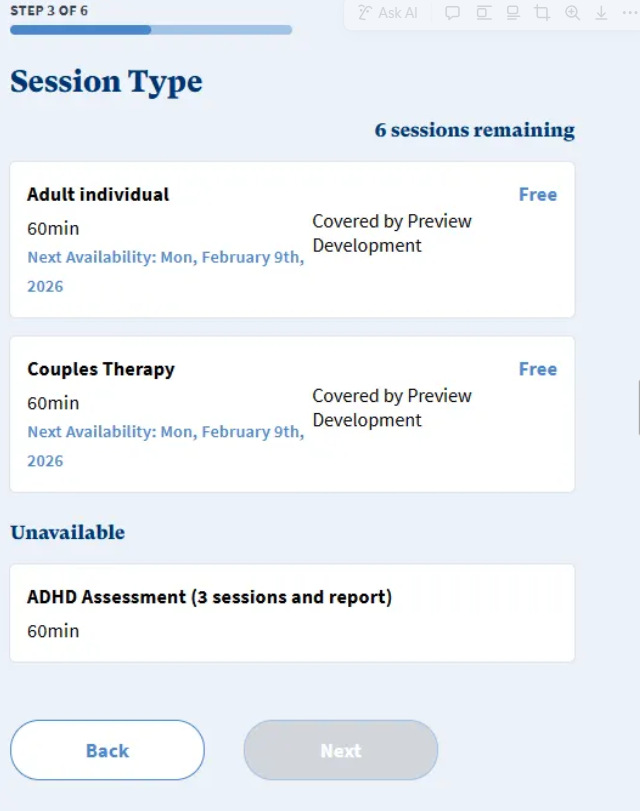
Select the Session Type and press ‘Next’.
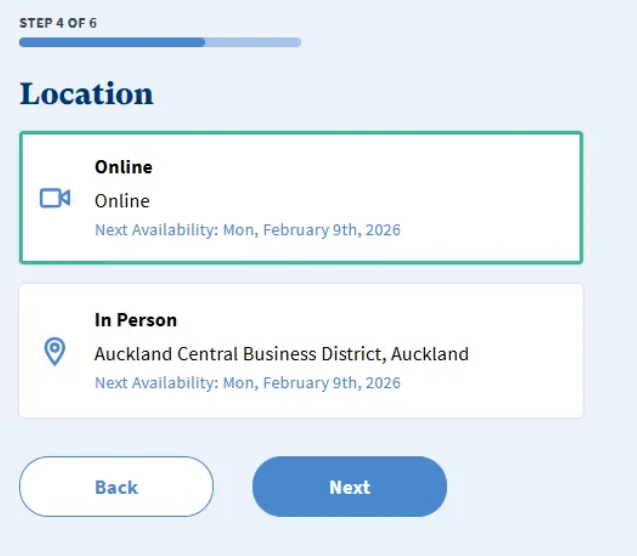
Select the Location and press ‘Next’.
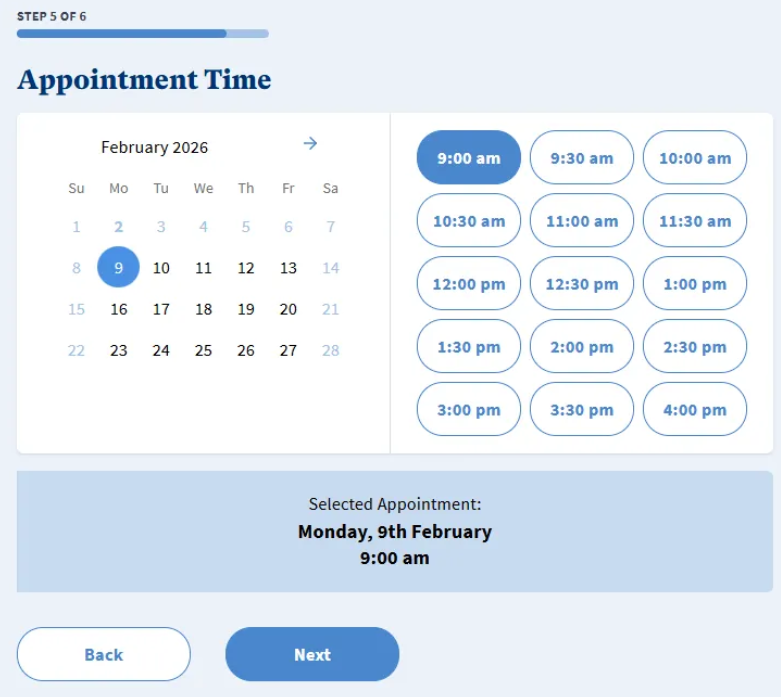
Select the Appointment Time (if therapist has their calendar synced) and press ‘Next’.
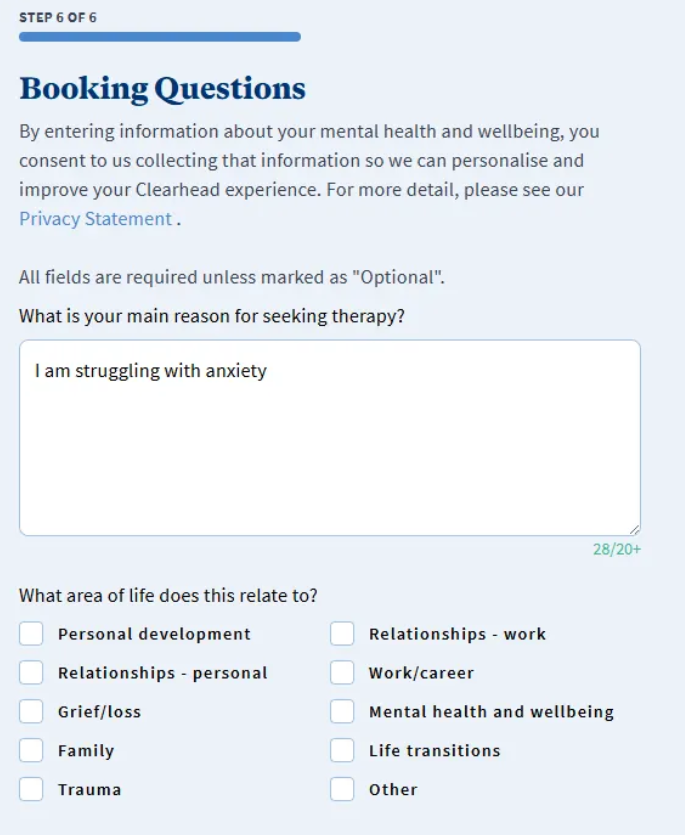
Answer the Booking Questions and click ‘Next’.
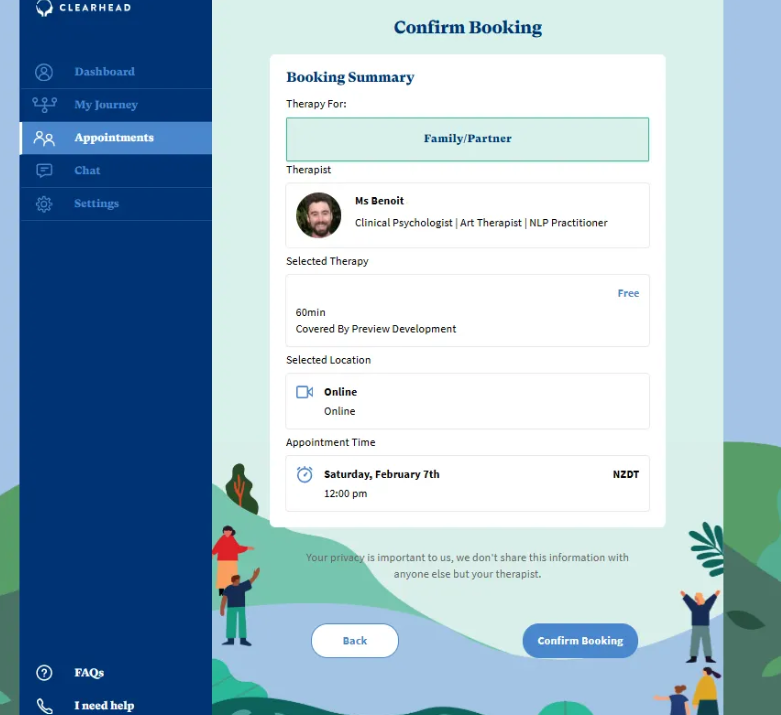
Confirm the booking details and click ‘Confirm Booking’.
If you didn’t enter their email when adding the family member, you will receive an email with confirmation of the booking request, and another when the booking has been confirmed.
If you did enter their email when adding the family member, they will receive an email with confirmation of the booking request, and another when the booking has been confirmed.
Was this article helpful?
That’s Great!
Thank you for your feedback
Sorry! We couldn't be helpful
Thank you for your feedback
Feedback sent
We appreciate your effort and will try to fix the article